Product update
New: Excel Guest Import, More Table Shapes and Seat-Finder QR Codes
An RSVP spreadsheet, a room layout and a question at the entrance — “Where am I sitting?” — are three parts of the same event. This update connects them: preview a CSV or Excel guest import, choose more table shapes, and share a name-based seat-finder link or QR code.
Importing guests and editing table shapes are free in the local planner, without an account. Guest seat lookup uses a saved Event Pass or Pro cloud plan. Guests do not need an account to look up their own name. Prices and the existing rule-based seating requirements have not changed.
1. Import the spreadsheet, then check it before changing the plan
Open the free seating planner, select the Guests panel and choose Import guests (CSV / Excel). Supported files are CSV, TSV and Excel .xlsx. Save an older .xls workbook as .xlsx first. Keep the file under 5 MB; an import can contain up to 10,000 individual guests after expanding parties.
If a workbook has several visible sheets with data, choose the one you want to import. The preview lets you check whether the first row contains column headings and change the mapping for each column. Nothing is added to the plan until you confirm.
You can map a full-name column or combine First Name and Last Name. Other fields include group, meal or dietary requirements, accessibility, notes, table, seat, locked seat, importance and party size. Common headings such as “Dietary” and “Table Preference” are recognized; unfamiliar columns can be mapped manually or ignored. A table preference becomes a group label — it does not automatically assign that group to a table.
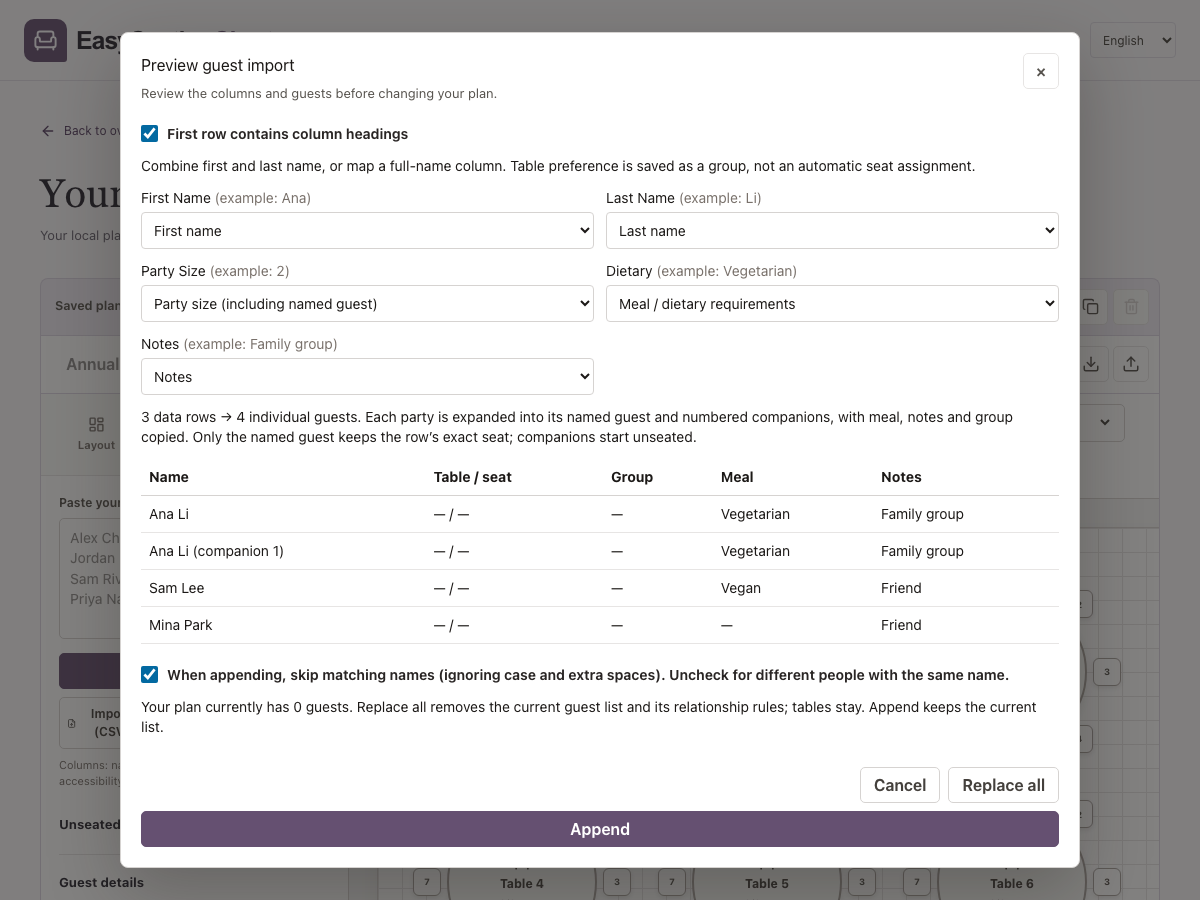
Actual import preview using fictional names. No real guest information is shown. Open the full-size preview.
Replace, append, or cancel
Replace all removes the current guest list and its relationship rules while keeping the tables. Append retains the current list and adds the imported guests. Cancel leaves the plan unchanged.
When appending, you can skip matching names, ignoring case and extra spaces. Review that choice: two different guests may have the same name. Leave the option unchecked when you need to keep both. Email addresses are not a supported guest field and are not used for duplicate matching.
A party becomes individual seats
A row with party size 4 becomes the named guest plus three numbered companions. Meal, group and notes are copied to the companions. Only the named guest keeps an exact seat specified in that row; companions start unseated. Review any shared meal or accessibility details and replace placeholder companion names with each person's actual full name before distributing a seat-finder QR code.
An imported seat that is missing or already occupied leaves that guest unseated, with a notice. Importing the file does not guarantee every person has a valid seat. Check the guest count and unseated list before moving on.
2. Use a table shape that matches the room
The floor-plan toolbar still offers round and rectangular tables. More shapes… now adds:
- Square tables for smaller groups or desk layouts.
- Oval tables when a rounded long table is a better visual match.
- U-shaped tables, with seats around the outside.
- Rows of chairs for a ceremony, presentation or classroom without a shared table surface.
Set the seat count, move and rotate the elements, then inspect the chair positions. The drawing is a planning aid, not a scaled furniture specification. Confirm usable capacity, access and spacing with the venue; a shape alone does not establish how many people can sit comfortably.
These shapes also appear in floor-plan image exports. Free auto-arrange remains available. You can prepare Together/Apart rules for free, while applying those rules during auto-arrange still requires the existing paid entitlement. A Together rule means the same table, not guaranteed adjacent chairs.
For a concrete long-table example, see the 24-guest banquet seating guide. For labels that guests and staff can follow, see the table numbering guide.
3. Give guests a link or QR code to find their seats
The seat finder is useful before the event, when you want to send a link with arrival information, and at the entrance, where a printed QR code lets guests check their table without searching an entire list.
It is optional and must be enabled by the plan owner. A local-only chart cannot provide a live lookup service.
- Arrange the seats and save the plan to the cloud with an active Event Pass or Pro plan.
- Open Account and find the plan in your cloud plans list.
- Expand Guest seat-finder link & QR code under that plan. This management panel is available to its owner, not invited co-editors.
- Choose Create seat-finder link & QR, then copy the link or download the 512 × 512 PNG.
- Scan the QR on your phone and search a known guest before sending or printing it. Give guests the generated link or QR, not the bare
/en/find-seataddress: the generated version identifies your event.
A guest opens the link, enters their full name as recorded in the list, and sees the matching table and seat number. No registration or sign-in is required. The lookup accepts case differences and extra spaces, including full-width spaces; it is not a partial-name search or a list of suggestions.
What guests can and cannot see
Results include the event title and matching names, tables and seats. The service does not return the whole guest list, email addresses, meals, notes or relationship rules. Anyone who has the link and knows a full name can look up that name; this is not an identity check, so share the link with your intended attendees.
If two guests share the same name, both matching assignments are displayed with a notice to confirm with the host. An unseated guest gets an unassigned-seat message. A name that does not match gets a no-match message. Keep a staff copy or printed list available for guests without a phone or internet connection.
Seat changes update; replaced links do not survive
If you move a guest and save the updated plan to the cloud, the same QR code retrieves the new assignment on the next search. Unsaved local edits do not update lookup results.
Replace link & QR creates a new link and immediately invalidates the old link and printed QR. Use it when you intend to revoke the old version, not for routine seating changes. Disable seat lookup turns the service off. Lookup also stops when the plan's cloud viewing access ends, so check the plan's dates before distributing a QR for a future event.
This is separate from Embed plan, which publishes a read-only snapshot, and from the private link used to share a whole plan. Seat lookup answers a named guest's seating question; it is not a live public floor-plan display, an RSVP form or an attendance check-in system.
What is free, and what needs a cloud plan?
Free local planning: CSV/Excel import with mapping and preview; all supported table shapes and chair rows; manual seating; free auto-arrange; local saving; and the existing print and export tools.
Event Pass or Pro cloud planning: save the event online and, as its owner, create a guest seat-finder link and QR. Event Pass remains a one-time $9.90 for one event. Pro remains $19.90/month or $59/year. See current plans and access periods before choosing one.
The new import, shape and seat-finder interfaces are available in English, Spanish, French, German, Japanese, Korean and Chinese. A generated seat-finder link uses the language of the account page where it was created. Guest names and custom table labels remain as you entered them.
Frequently Asked Questions
Can I import an Excel file without paying or signing in?
Yes. CSV, TSV and .xlsx import works in the free local planner. Choose the Guests panel, open Import guests (CSV / Excel), and review the preview before replacing or appending the list. The file is read in your browser; imported plan data is sent to the cloud only when you use cloud saving.
Do guests need an account to scan the QR code?
No. They need the complete link or QR from the host and the full name recorded on the guest list. The host needs an eligible saved cloud plan and must enable lookup first.
Will editing a seat make me print a new QR code?
No. Save the changed seating plan to the cloud and the current QR will return the new result on the next search. Replacing the link is a separate action that invalidates the old QR code.
Can co-editors create or turn off the lookup link?
No. Only the plan owner can manage the lookup link. Authorized co-editors can still edit the plan within their existing permissions; their saved seating changes are reflected in later lookups.
What happens when two guests have the same name?
The lookup shows matching assignments and asks the guest to confirm with the host. It does not use email addresses to distinguish people. Review same-name guests and companion placeholders before sharing the link.
Try the free seating planner, or open your cloud plans to enable guest lookup for an existing event.